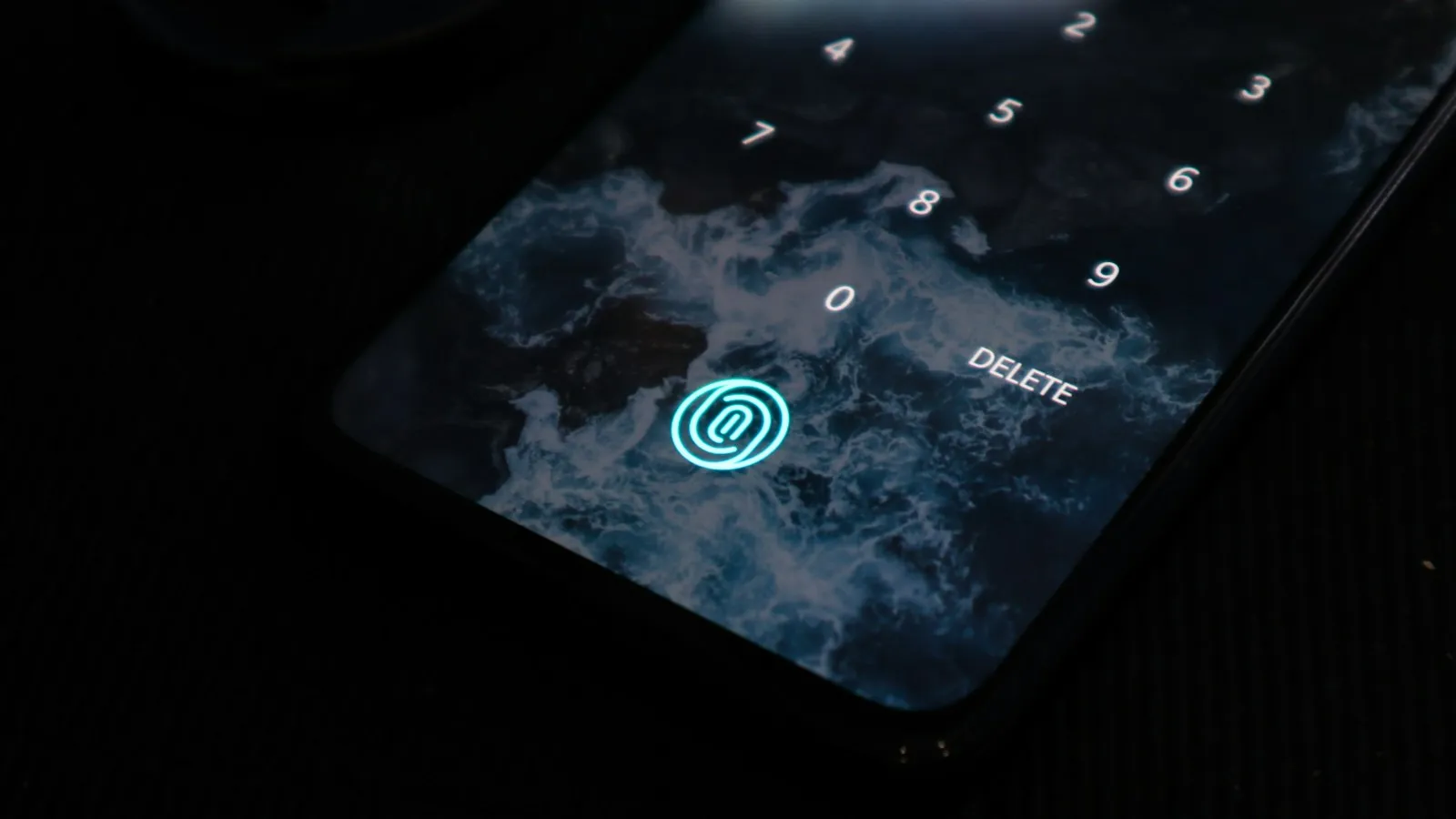
Fingerprint Not Working on Android or iPhone? 10 Easy Fixes
Phone won't read your fingerprint? Try these 10 fixes for Android and iPhone Touch ID, from cleaning the sensor and re-adding your print to screen protector problems.
On this page
If your fingerprint is not working on your phone, clean and dry both the sensor and your finger, remove any case or screen protector that covers the sensor, and delete and add your fingerprint again. These three steps fix most problems on both Android phones and iPhones with Touch ID. If it still fails, restart the phone and install the latest software update.
Fingerprint sensors are very sensitive. Even a little lotion, sweat, or dust can stop a match.
10 ways to fix a fingerprint sensor
1. Clean the sensor
Wipe the sensor with a soft, lint-free cloth. For under-screen sensors, clean the whole bottom of the screen. Do not use harsh cleaners.
2. Clean and dry your finger
Wet, oily, or dirty fingers are hard to read. Wash and dry your hands, then try again.
3. Fix very dry or cold skin
Very dry skin and cold hands can make fingerprints faint. Warm your hands or use a little lotion, then wipe off any extra.
4. Remove the case or screen protector
A case that covers part of the sensor, or a thick screen protector over an in-display sensor, can block it. Take it off and test again. If it works, buy a protector made for your phone model.
5. Press the right way
- Cover the whole sensor with the flat pad of your finger, not just the tip.
- Hold still for a moment.
- For in-screen sensors, press firmly on the fingerprint icon.
6. Delete and add your fingerprint again
Fingerprints can change a little over time, especially with cuts or dry skin.
On iPhone (Touch ID):
- Go to Settings, then Touch ID & Passcode, and enter your passcode.
- Tap the fingerprint and choose Delete Fingerprint.
- Tap Add a Fingerprint and follow the steps, moving your finger slightly each time.
On Android: Go to Settings, then Security or Biometrics, then Fingerprint. Delete the old print and add it again. Menu names vary by brand.
7. Add the same finger twice
Many phones let you save more than one fingerprint. Saving the same finger twice, once normally and once at a slightly different angle, can help a lot.
8. Restart your phone
A restart clears small software glitches. On iPhone, you will need your passcode after a restart before Touch ID works again. That is a normal security step.
9. Update your phone
Phone makers often fix fingerprint bugs in updates. Install the latest update in Settings. If your phone restarts or acts up often, see our guide on random phone restarts.
10. Check for hardware damage
If the sensor is cracked, the Home button was replaced, or the phone got wet, the sensor may be damaged. Apple notes that Touch ID may not work if the Home button or sensor is not an original part matched to your iPhone.
Why your iPhone keeps asking for a passcode
This is normal. Apple requires your passcode instead of Touch ID in cases like:
- After the phone restarts
- After five failed fingerprint tries
- When the phone has not been unlocked for 48 hours
- When you change Touch ID settings
Quick fixes by problem
| Problem | Try this |
|---|---|
| Works sometimes, not always | Add the same finger twice, clean the sensor |
| Stopped after a new screen protector | Add your fingerprint again, or use a compatible protector |
| Stopped after an update | Restart, then add your fingerprint again |
| Does not work in winter | Warm your hands, use lotion for dry skin |
| Option is grayed out | Restart, update the phone, check for damage |
| Sensor is cracked | Visit the maker's repair service |
When to get it repaired
Contact Apple, Google, Samsung, or your phone maker if:
- The fingerprint option is missing or grayed out
- The sensor is physically damaged
- It still fails after you reset your fingerprints and update the phone
Until then, you can use a PIN, passcode, pattern, or face unlock.
Other phone problems? See why a phone screen keeps dimming or what to do when a phone gets hot.
Fixes for popular phone brands
Menus differ a little by brand. Here is where to find fingerprint settings on common phones.
| Phone | Where to find fingerprint settings |
|---|---|
| iPhone with Touch ID | Settings, Touch ID & Passcode |
| Samsung Galaxy | Settings, Security and privacy, Biometrics, Fingerprints |
| Google Pixel | Settings, Security & privacy, Device unlock, Fingerprint |
| Motorola | Settings, Security, Fingerprint |
| OnePlus | Settings, Security & privacy, Device unlock, Fingerprint |
Samsung Galaxy tips
- Samsung phones with an in-display sensor work best with the screen protector the phone came with or one made for your exact model.
- Turn on Touch sensitivity in Settings, then Display, if you use a screen protector.
- After adding a new protector, delete your fingerprints and add them again.
Google Pixel tips
- Pixel phones have a Screen protector mode under Settings, then Display & touch, that makes the screen more sensitive.
- Press firmly and hold your finger still until the phone vibrates.
iPhone tips
- Make sure your finger touches the metal ring around the Home button, not just the button.
- If Touch ID is grayed out or you see "Unable to complete Touch ID setup," Apple says the phone may need service.
Side-button and back-mounted sensors
Some phones put the fingerprint sensor on the power button or on the back.
- Side-button sensors often fail if you press the button too hard or only touch the edge. Rest your finger flat on the button without clicking it.
- Back sensors get dirty from pockets and cases. Wipe them often, and check that your case has a clean cutout around the sensor.
Why fingerprints get harder to read over time
- Dry winter skin makes the ridges on your fingers fainter.
- Cuts, burns, and calluses change the pattern the phone saved.
- Hand washing and sanitizer dry out skin.
- Some jobs and hobbies, like construction, gardening, and playing guitar, wear down fingertips.
Adding the same finger two or three times, and updating it every few months, helps the phone keep up with these changes.
Keep your phone secure while you fix it
- Use a strong PIN or passcode, with 6 digits or more.
- Turn on face unlock if your phone has it.
- Do not remove your screen lock just because the fingerprint sensor is acting up.
- If you think someone else's fingerprint is saved on your phone, delete all fingerprints and add only your own.
Signs it is a hardware problem
| Sign | What it may mean |
|---|---|
| Fingerprint option is missing or grayed out | Sensor not detected |
| Problems started after a drop or screen repair | Sensor damaged or not paired |
| Error after water exposure | Moisture damage |
| Sensor area is cracked or scratched | Physical damage |
If you see these signs, contact your phone maker or an authorized repair shop. Unofficial screen replacements on some phones can break in-display fingerprint sensors.
Know your fingerprint sensor type
Phones use different kinds of fingerprint sensors, and each one has its own weak spots.
| Sensor type | Where you find it | Common trouble |
|---|---|---|
| Capacitive | Home button, side button, or back of the phone | Dry, wet, or dirty fingers |
| Optical | Under the screen on many Android phones | Thick or scratched screen protectors, bright sunlight |
| Ultrasonic | Under the screen on some high-end Android phones | Screen protectors that are too thick or leave air gaps |
To find your type, search for your phone model and "fingerprint sensor type," or check the maker's specs page.
Just added a screen protector?
A new screen protector is one of the most common reasons an under-screen sensor stops working.
- Make sure there are no bubbles over the sensor area.
- Delete your old fingerprints and add them again after the protector is on. This fixes most cases.
- Check the protector box. It should say it works with your phone's fingerprint sensor. Ultrasonic sensors usually need a thin protector made for them.
- If nothing works, try a different protector before you blame the phone.
The bottom line
When your fingerprint is not working, start simple: clean the sensor, dry your finger, and remove any case or screen protector in the way. Then delete and add your fingerprint again, and try saving the same finger twice. Restart and update the phone if it still fails. If the sensor is damaged or the option is missing, contact your phone maker for repair.
Sources
This guide was checked against these official and manufacturer sources.
Frequently asked questions
Why is my fingerprint not working on my phone?
The most common reasons are a dirty or wet sensor, dry or wet fingers, a screen protector or case covering the sensor, a worn or cut fingertip, or a software glitch. Cleaning the sensor and adding your fingerprint again fixes most cases.
Why does my iPhone ask for my passcode instead of Touch ID?
iPhones require your passcode after a restart, after five failed fingerprint tries, or if the phone has not been unlocked for 48 hours, among other security reasons. This is normal. Enter your passcode and Touch ID will work again.
Can a screen protector stop my fingerprint sensor from working?
Yes. Phones with a fingerprint sensor under the screen can struggle with thick or glass screen protectors. Use one that says it works with your phone's in-display sensor, and add your fingerprint again after putting it on.
Does cold weather affect fingerprint sensors?
Yes. Cold, dry, or very wet skin can make fingers harder to read. Warm your hands, dry them, or use a little lotion if your skin is very dry.

Written by
Agha Ali Abbas
Agha Ali Abbas is the founder and editor of TimeToNote. He has worked in SEO and content writing for 18 years, and he checks every guide against manufacturer documentation and official sources before it goes live.
Related guides
Tech Problems
Why Does My Phone Keep Restarting? 11 Causes and How to Fix It
iPhone or Android restarting on its own? Find out why, from buggy apps to a worn battery, and follow these simple steps to stop the restart loop.
8 min read
Tech Problems
Why Does My Phone Screen Keep Dimming? How to Stop It on iPhone and Android
Phone screen getting darker by itself? Learn the common causes, from auto-brightness to heat, and the settings that stop it on iPhone and Android.
7 min read

Tech Problems
Why Does My Phone Get Hot? 10 Causes and How to Cool It Down
Is your phone getting hot? Learn the 10 most common reasons, how to cool it down safely in minutes, and when heat is a sign of a bigger problem.
10 min read