How to Update to iOS 27 on Your iPhone (and Fix Update Problems)
How to update your iPhone to iOS 27, which iPhones can get it, and what to do if the update is stuck, will not install, or needs more storage.
On this page
To update to iOS 27, back up your iPhone, plug it in, connect to Wi-Fi, then go to Settings, General, Software Update and tap Update Now. Apple released iOS 27 on September 14, 2026, and it is free for the iPhone 11 and later and the iPhone SE (2nd generation) and later.
The whole update usually takes 20 to 45 minutes. Below are the steps, plus fixes if the update is stuck or will not install.
Can your iPhone get iOS 27?
| Supported | Not supported |
|---|---|
| iPhone 11 and later, including the iPhone 16, 17, and 18 families and iPhone Air | iPhone XS, XS Max, XR, and older |
| iPhone SE (2nd generation) and later | iPhone SE (1st generation) |
Some Apple Intelligence and new Siri features need an iPhone 15 Pro or newer, even though older supported iPhones can install iOS 27.
To find your model, go to Settings, then General, then About, and look at Model Name.
Before you update
- Back up your iPhone. Go to Settings, tap your name, then iCloud, then iCloud Backup, and tap Back Up Now. You can also back up to a computer.
- Charge it. Keep it plugged in, or make sure the battery is above 50 percent.
- Connect to Wi-Fi. A strong connection is faster and more reliable.
- Free up space. The update needs several GB of free storage. Check in Settings, then General, then iPhone Storage.
How to update to iOS 27
- Open Settings.
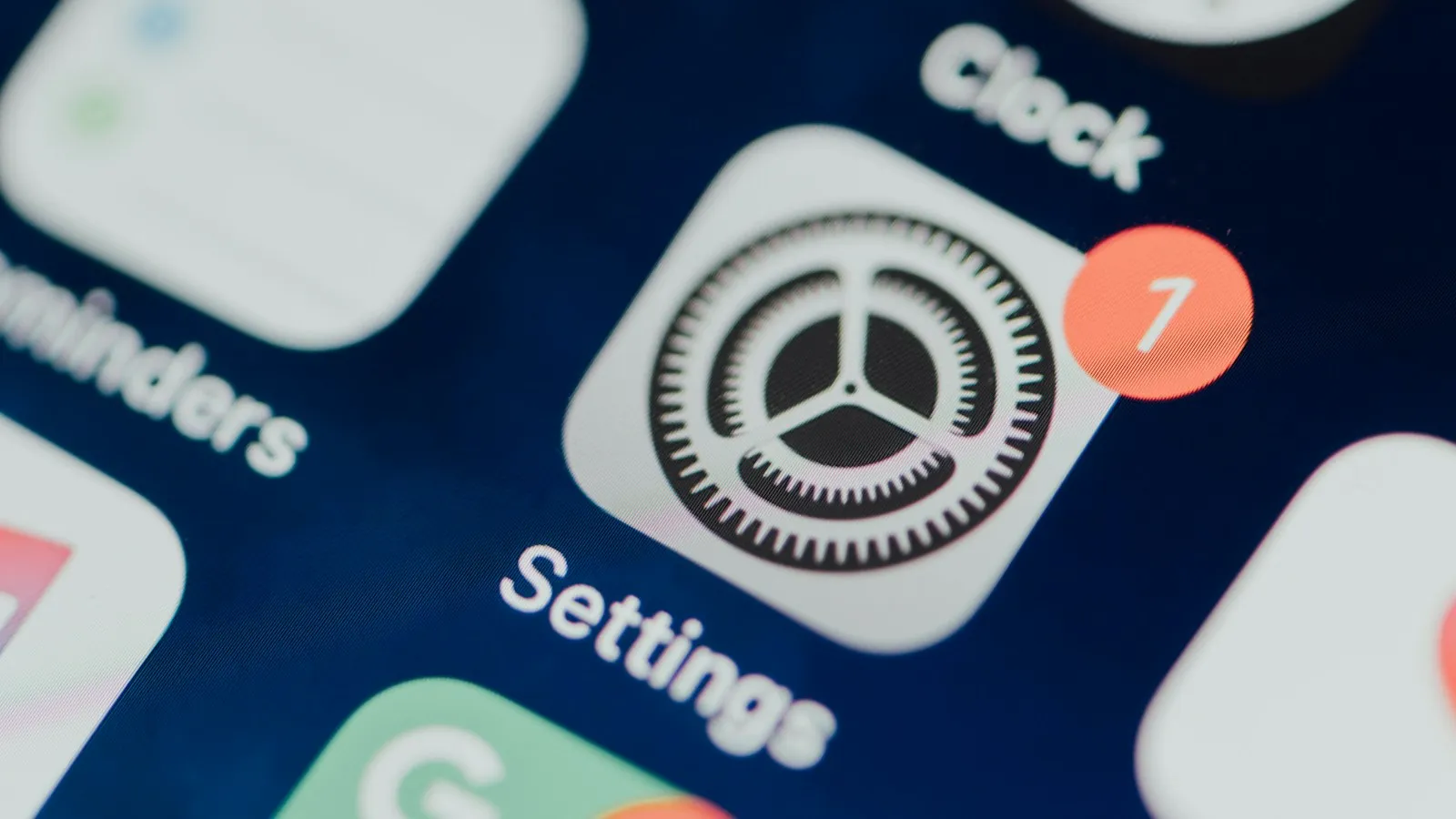
- Tap General, then Software Update.
- If you see iOS 26 updates first, look for an option to Upgrade to iOS 27 at the bottom.
- Tap Update Now or Download and Install.
- Enter your passcode and agree to the terms.
- Wait for the download, then tap Install Now.
Your iPhone will restart and show the Apple logo with a progress bar. Do not unplug it or force it off during this time.
Update overnight
After the download, you can tap Install Tonight. Plug your iPhone in before bed, and it will install while you sleep.
Turn on automatic updates
Go to Settings, General, Software Update, then Automatic Updates, and turn on Download and Install for iOS updates.
Fixes for common iOS 27 update problems
iOS 27 is not showing up
- Make sure your iPhone is supported (iPhone 11 or newer, or SE 2nd generation or newer).
- Restart your iPhone and check again.
- Make sure you are on Wi-Fi, not a VPN.
- Remove any beta profile in Settings, General, VPN & Device Management if you used beta software before.
Not enough storage
- Delete apps you do not use, or turn on Offload Unused Apps.
- Move photos and videos to iCloud or a computer.
- Clear large message attachments.
Our guide on clearing space when phone storage is full has more tips.
Update is stuck on "Preparing" or "Verifying"
- Wait at least 30 minutes. Release day can be slow.
- Make sure Wi-Fi is working.
- If it is still stuck, restart the iPhone and try again.
Update failed or "Unable to Install Update"
- Go to Settings, General, iPhone Storage, find the iOS 27 update, and tap Delete Update.
- Restart the iPhone.
- Download the update again.
iPhone is stuck on the Apple logo
- Wait, since some installs take longer.
- If it has not moved for more than an hour, force restart: press and release Volume Up, press and release Volume Down, then hold the Side button until the Apple logo appears.
- If it still will not start, use a Mac or PC to update or restore it, or contact Apple Support.
After the update
- Battery may drain faster for a day or two while the iPhone re-indexes photos and data. This usually settles down.
- Your phone may feel warm for a short time for the same reason. If it stays hot, see what to do when an iPhone overheats.
- Update your apps in the App Store so they work well with iOS 27.
- Restart once if anything feels slow.
If the phone will not charge properly after updating, our guide on an iPhone that won't charge can help. If it restarts on its own, see fixes for an iPhone that restarts by itself.
How much storage does iOS 27 need?
The exact size depends on your model and current version, but big iOS updates need at least 5 to 6 GB of free space to download and install. For a big yearly update like iOS 27, having 10 to 15 GB free is safer. If you are low on space, your iPhone may offer to remove some apps for a while and put them back after the update.
| Your free space | What to do |
|---|---|
| 15 GB or more | You are ready to update |
| 6 to 15 GB | Often enough, but clear a little extra to be safe |
| Less than 6 GB | Delete apps, videos, or old messages first |
Update with a computer instead
If the update keeps failing over Wi-Fi, you can use a computer.
On a Mac:
- Connect your iPhone with a cable.
- Open Finder and click your iPhone in the sidebar.
- Click Check for Update, then Download and Update.
On a Windows PC:
- Install the Apple Devices app (or iTunes on older Windows versions).
- Connect your iPhone with a cable.
- Select your iPhone, then click Check for Update.
Keep the cable connected until the update finishes.
Should you update right away?
Most people should update within a week or two. Updates bring new features and important security fixes. But there are a few reasons to wait a few days:
- You rely on a special app for work that may not support iOS 27 yet.
- You do not have time to deal with a possible problem this week.
- You want to wait for the first bug-fix update, like iOS 27.0.1.
If you wait, still install security updates when Apple offers them.
Before and after checklist
Before:
- Back up to iCloud or a computer
- Know your Apple Account password
- Know your iPhone passcode
- Charge above 50 percent
- Connect to Wi-Fi
- Free up space
After:
- Update your apps
- Check that photos, messages, and contacts look normal
- Review new privacy and notification settings
- Restart once if anything feels slow
Battery tips after updating
For the first day or two, your iPhone does a lot of background work, like sorting photos and rebuilding search. To help the battery:
- Keep it plugged in overnight after updating.
- Turn on Low Power Mode if you need to save battery.
- Check Settings, then Battery, to see which apps use the most power.
- Give it 2 to 3 days before deciding the battery is worse.
If the drain lasts longer than a week, see our full guide to fixing iPhone battery drain after iOS 27.
Security note
Only download iOS updates from Settings on your iPhone or through Apple's Finder and Apple Devices apps. Websites or messages that offer "iOS 27 downloads" or "early access" are often scams.
What is new in iOS 27?
iOS 27 is more about speed and smarter features than big design changes. Some of the main updates include:
- A rebuilt Siri that can handle more natural requests. The most advanced Siri and Apple Intelligence features need an iPhone 15 Pro or newer.
- New parental controls for families.
- A smarter Safari and upgraded photo editing tools.
- Camera app changes that let you customize more controls.
Features can vary by country and language, so some may not show up on your iPhone right away.
When will the first bug-fix update come out?
Apple usually releases a .1 update, like iOS 27.1, about four to six weeks after a big release. These updates often fix bugs and battery problems people notice in the first weeks. If you are waiting to update, iOS 27.1 is a good time to make the jump.
The bottom line
To update to iOS 27, back up your iPhone, plug it in, connect to Wi-Fi, and go to Settings, General, Software Update. iOS 27 is free for the iPhone 11 and later and the iPhone SE (2nd generation) and later. If the update does not show up, fails, or gets stuck, restart the phone, free up storage, and delete and re-download the update.
Sources
This guide was checked against these official and manufacturer sources.
Frequently asked questions
When was iOS 27 released?
Apple released iOS 27 on September 14, 2026. It shows up as a free update in Settings on supported iPhones.
Which iPhones can get iOS 27?
iOS 27 works on the iPhone 11 and later, plus the iPhone SE (2nd generation) and later. Some Apple Intelligence and new Siri features need an iPhone 15 Pro or newer.
How long does the iOS 27 update take?
Usually 20 to 45 minutes in total, depending on your internet speed and iPhone model. Downloads can be slower on release day when many people update at once.
Why is iOS 27 not showing up on my iPhone?
Your iPhone may not be supported, the update may still be rolling out, or your phone may need a restart. Check that you have an iPhone 11 or newer, connect to Wi-Fi, restart, and check Settings, General, Software Update again.
Can I go back to iOS 26 after updating?
Usually only for a short time after release, while Apple still signs the older version, and it requires a computer. After that, you cannot go back. Make a backup before you update.

Written by
Agha Ali Abbas
Agha Ali Abbas is the founder and editor of TimeToNote. He has worked in SEO and content writing for 18 years, and he checks every guide against manufacturer documentation and official sources before it goes live.
Related guides

Tech Problems
Why Is My Phone Storage Full? How to Free Up Space on iPhone and Android
Phone storage full? See what is using up your space and free it up fast on iPhone or Android, without losing your photos, messages, or favorite apps.
8 min read
Tech Problems
iPhone Not Charging? 12 Easy Fixes That Work
iPhone won't charge, charges slowly, or stops at 80%? Try these 12 fixes in order, from checking the cable and cleaning the port to battery health.
8 min read
Tech Problems
Why Does My Phone Keep Restarting? 11 Causes and How to Fix It
iPhone or Android restarting on its own? Find out why, from buggy apps to a worn battery, and follow these simple steps to stop the restart loop.
8 min read